G
Gastrora Clear hours for your restaurant.
Guide for new restaurant owners

Getting started with Gastrora

From sign-up to your first published shift in 15 minutes — you go through it step by step and end up with a working shift plan that reaches your team via WhatsApp.

Durationapprox. 15 min setup
Phases6 steps
Trial30 days free
Overview

The first 15 minutes

Six steps you can work through in one go. You don't need to prepare anything — your employees' phone numbers are enough.

1
AccountEmail + password, confirmation link.
2
BusinessName, UID, choose the L-GAV standard.
3
OverviewFollow the checklist, step by step.
4
EmployeesAdd them + WhatsApp invitation.
5
Templates3–5 shift templates for drag and drop.
6
Publish the planSend your first week via WhatsApp.
Step 1

Create an account

On gastrora.ch, click «Try for free» at the top right. All you need is an email address and a password with at least 8 characters. No credit card, no upfront commitment.
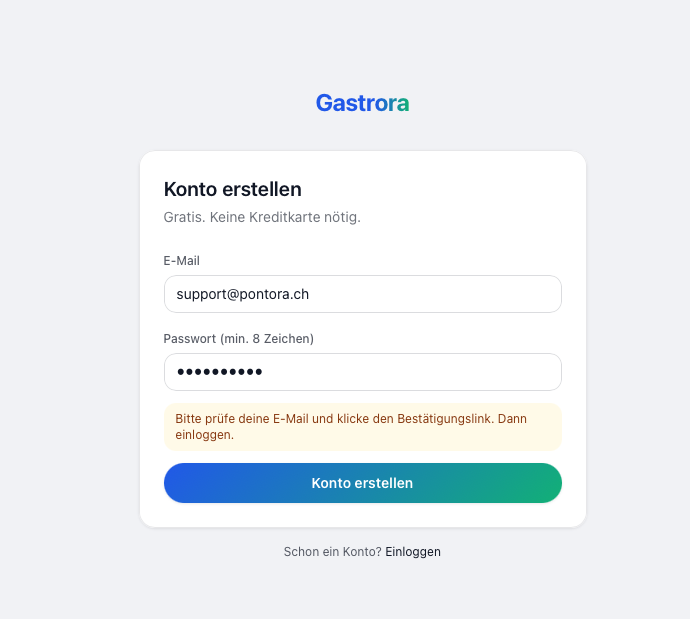
gastrora.ch/signup
Create account — enter email and password
📷 Screenshot of the sign-up form coming soon
Enter your email and password, then «Create account». In the background, Gastrora sends you a confirmation email.
💡
Confirm your emailAfter clicking «Create account», you'll receive an email from noreply@gastrora.ch. Click the confirmation link — you're then logged in straight away. If the email lands in your spam folder: mark it as «not spam» once, and all future emails (month-end close, reminders) will arrive in your inbox.
Step 2

Set up your business

After clicking the confirmation link, you'll see the green «Email confirmed» notice and land directly in the welcome wizard. Four fields, 30 seconds:

Business name
The name of your restaurant — shown in emails and on PDFs.
UID number
Format CHE-123.456.789. You'll find it on zefix.ch or on your VAT invoice.
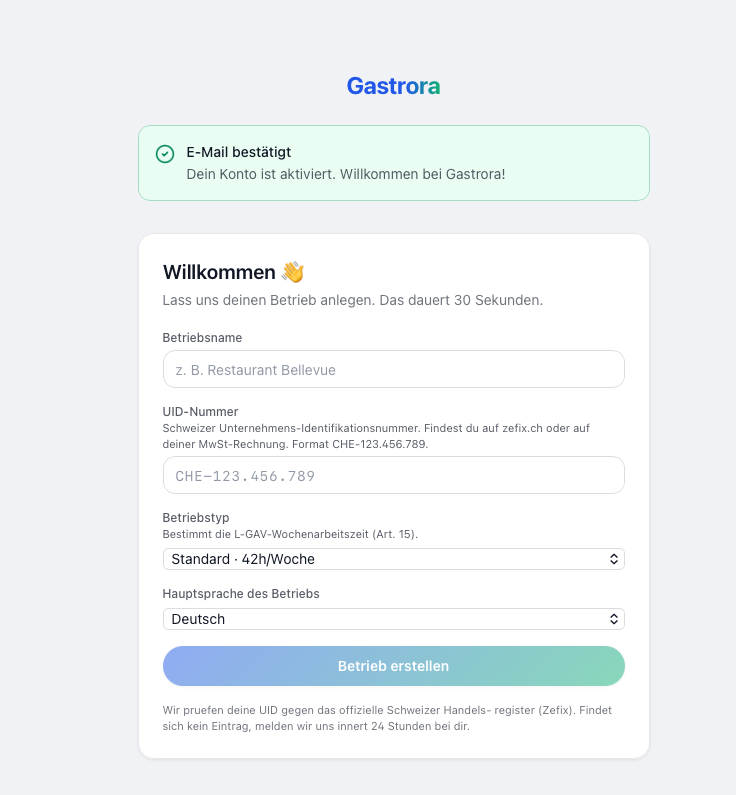
Business type
Determines the L-GAV weekly working hours. Standard = 42h/week (restaurant, bar). Other industry variants are available too.
Main language of the business
Default language for employees. You can choose a different language for each employee later (DE / FR / IT / EN).
gastrora.ch/onboarding
Onboarding wizard with business name, UID, business type and language
📷 Screenshot of the onboarding wizard coming soon
⚖️
UID checkWe check your UID against the official Swiss commercial register (Zefix). If no entry is found, we'll get in touch within 24 hours — this doesn't block you, you can still start right away.
Step 3

Overview: follow the setup checklist

You're now in the dashboard. At the top you'll see the trial notice («Trial period · 30 days left»), below it a Setup card with a progress bar and three tabs: Essentials, Day-to-day operations, Month-end close.
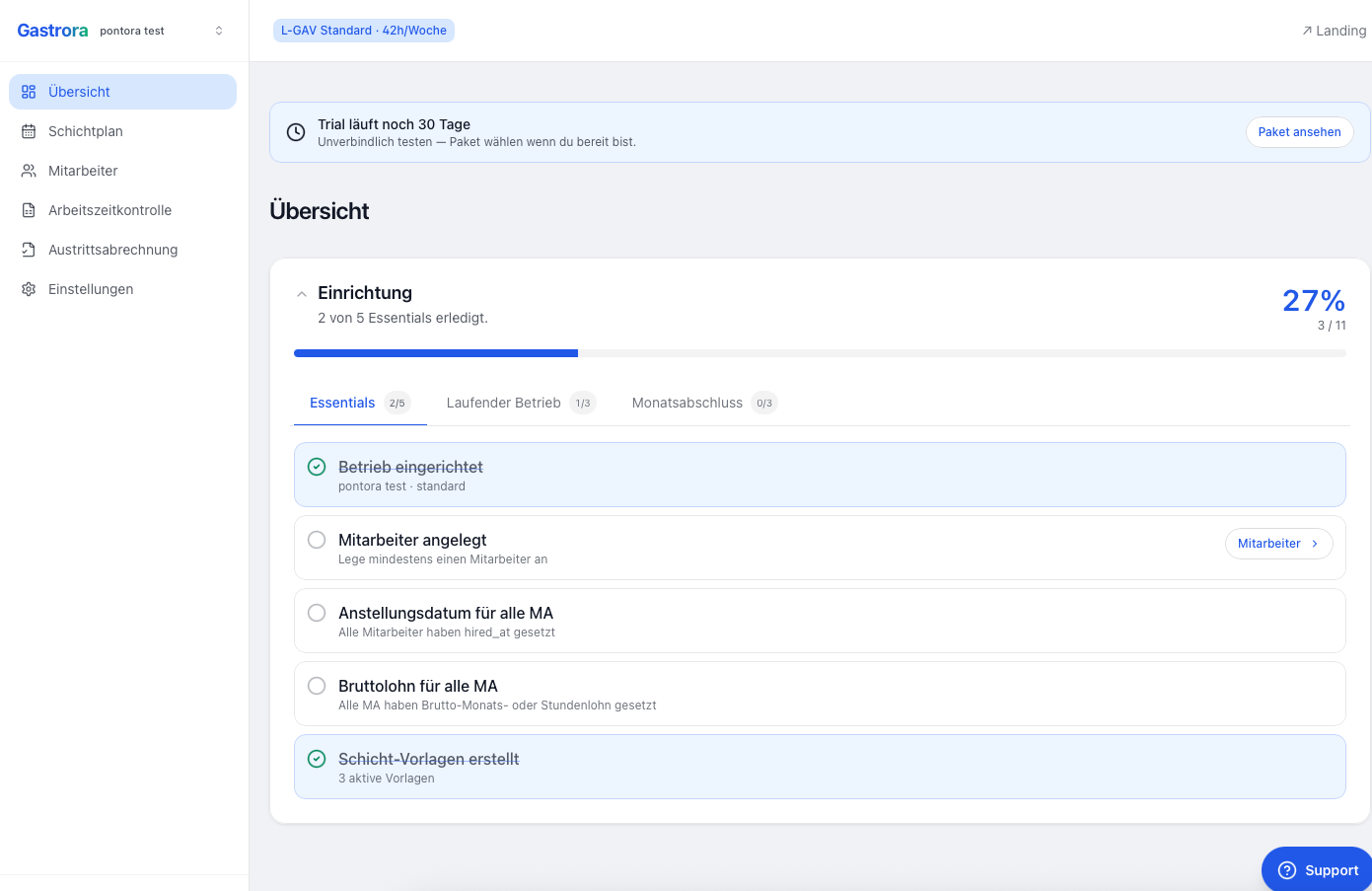
gastrora.ch/dashboard
Dashboard with setup checklist, 2 of 5 essentials
📷 Screenshot of the dashboard with checklist coming soon
The Essentials tab is your to-do list for the next 10 minutes — the business is already done, four items to go.

The five essentials in the right order:

  1. Business set up ✓ (we've just done that)
  2. Employees added — at least one
  3. Hire date for all employees — important for balances and years of service
  4. Gross salary for all employees — monthly wage or hourly wage
  5. Shift templates created — 3–5 typical shifts
💡
The checklist is your anchorIf you're unsure what comes next: just click the next open item. Each item takes you to the right page. Once the essentials are done, the Day-to-day operations and Month-end close tabs come next — they are self-explanatory.
Step 4

Add employees

Click Employees in the sidebar on the left → «Add employee» at the top right. Required fields per employee:

Name + Phone (WhatsApp)
Format with country code, e.g. +41 79 123 45 67. The number is used for sending WhatsApp messages.
Start date
The actual first working day — even if it was years ago. The basis for years of service and vacation entitlement.
Hours per week
E.g. 42 for full-time, 21 for 50%, 0 for purely hourly-paid staff.
Employment type
Permanent with a monthly wage (e.g. CHF 5'000 gross, field «Gross monthly wage CHF») — entitled to rest days / public holidays / vacation under the L-GAV. Hourly (e.g. CHF 28/h, field «Hourly wage CHF») — vacation/public holidays are compensated as a flat rate in the hourly rate.
Language + roles
The language in which the employee receives WhatsApp messages (DE/FR/IT/EN). Roles: service, kitchen, bar, reception etc. — several per employee are possible.

After saving, click the paper-plane icon «Send WhatsApp invitation» in the employee list. The employee receives a WhatsApp welcome message in their language with the most important commands (Start, End, Break, Sick).

⚠️
If the invitation doesn't arriveMeta's spam filters sometimes block the first message to unknown numbers. Ask the employee to send a quick «Hello» to the Gastrora number — after that, all messages arrive reliably.
Step 5

Create shift templates

Under Shift plan → Templates you create your typical shifts. 3–5 templates are enough for most businesses — you can always add more later.
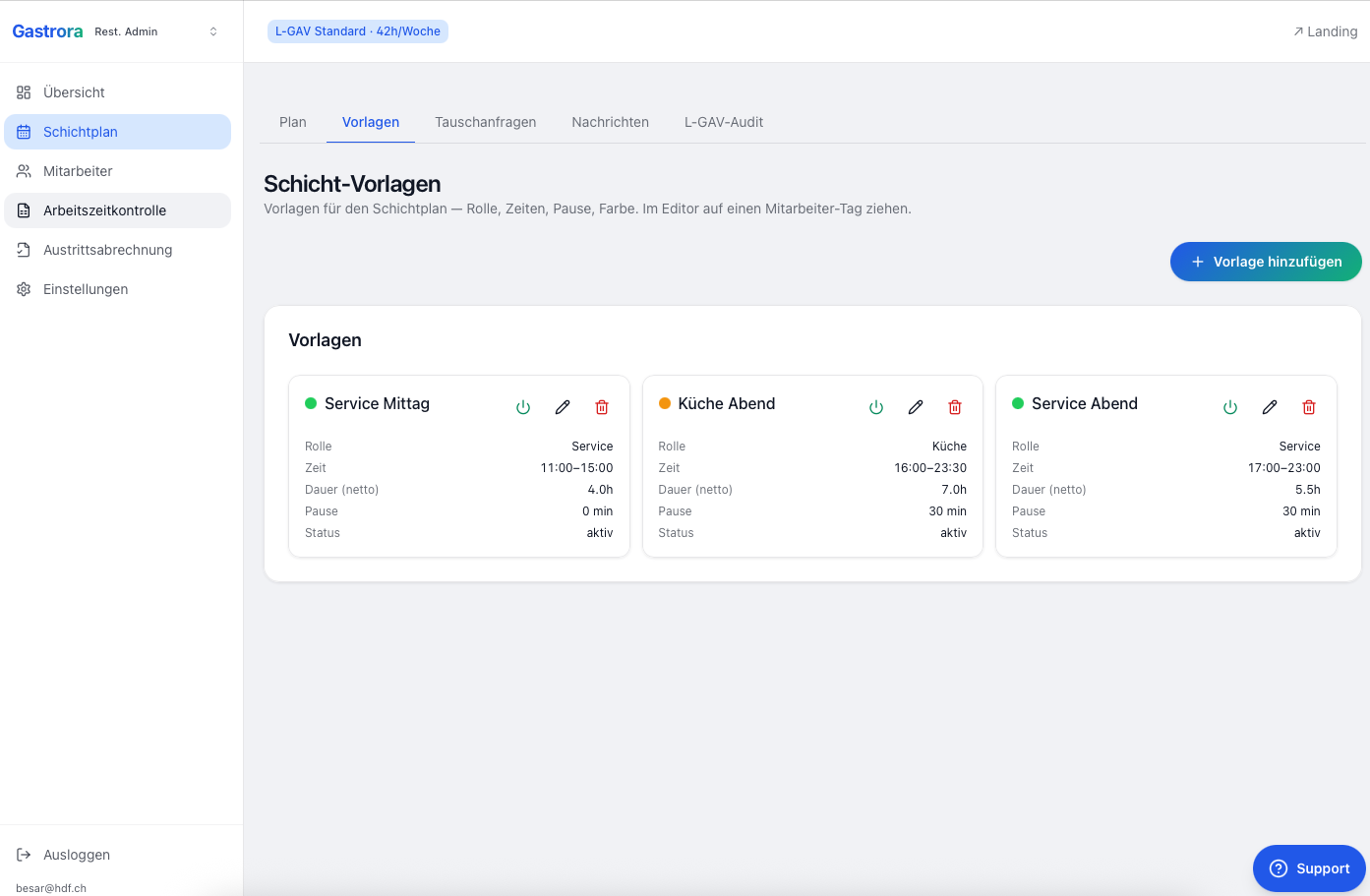
gastrora.ch/dashboard/templates
Three neatly maintained shift templates
This is what a typical setup looks like: lunch service, evening kitchen, evening service — each with the right role, time and mandatory break.

For each template you enter:

  • Name — e.g. «Evening service»
  • Role — service / kitchen / bar / reception / etc.
  • Start and end time — e.g. 17:00–23:00
  • Break — legal requirement: 0 min up to 5½ h, 15 min for more than 5½ h, 30 min for more than 7 h, 60 min for more than 9 h
  • Colour (optional) — helps you tell roles apart when dragging and dropping
💡
More tipsYou'll find detailed recommendations for your template strategy in the guide Getting the most out of templates.
Step 6

Publish your first shift

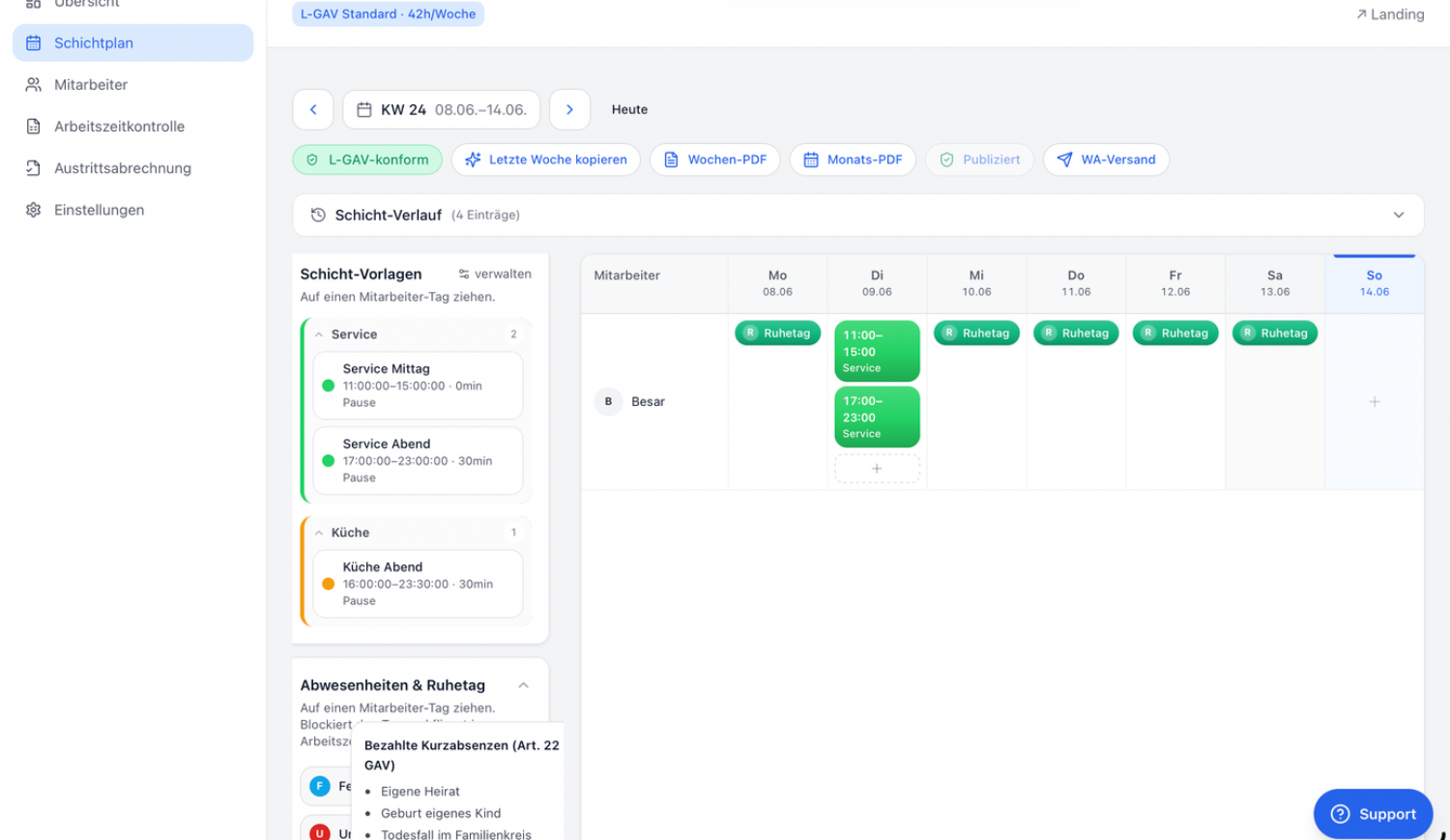
Switch to Shift plan → Plan. Choose a week at the top, then drag templates from the sidebar onto the relevant employee's day.
gastrora.ch
Shift plan week view
1

Drag and drop shift templates onto the employee/day cells. Rest days and absences work the same way.

2

Keep an eye on the L-GAV indicator. When it's green («L-GAV compliant»), the plan has no violations.

3

Click «Publish» at the top right. Every employee receives their plan via WhatsApp — in their own language.

✅
CongratulationsYour first plan is in the system and your team knows about it. From now on, your employees record their hours via WhatsApp — no app needed, no training.

What next?

You have a 30-day trial — time to try things out. My tip:

  • Download the guide for employees and send it to your team.
  • Read the monthly close guide — so you know what's coming up at the end of the month.
  • Questions? Use the question-mark icon «FAQ & Support» in the dashboard header at the top; we reply within 24 h.
  • After the trial, choose your package under Settings → Billing. If you only need the schedule without time tracking, the «Scheduling» package for CHF 39/month is enough — you can switch at any time.