G
Gastrora Clear hours for your restaurant.
Guide for employees

Your working hours via WhatsApp

You record your hours, breaks and sick leave directly via WhatsApp — no app, no login. Here you can see exactly how it works, with real examples.

Durationapprox. 4 min read
Steps7 topics
FormatWhatsApp
Overview

What you can do via WhatsApp

Seven things you need day to day — all done with short messages to the Gastrora number.

1
View the shift planWhen you work — right in the chat.
2
Clock in and outStart, Break and End — three words.
3
Catch up if you forgot«Start 10:00 End 14:00» — done.
4
Report sickOne message is enough.
5
Swap a shift«Swap 23.04» — your manager decides.
6
Request holiday«Holiday 12.11-19.11» — answer via WhatsApp.
7
Sign off the monthConfirm once a month.
Topic 1

View and confirm the shift plan

As soon as your manager publishes the weekly plan, you receive a WhatsApp message with all your shifts. You just need to confirm briefly — then everyone knows you have seen the plan.

G
Gastroraonline
📅 Hi Besar, your plan for week 24: Mon 10.06. · 11:00–15:00 · Service Tue 11.06. · Rest day Wed 12.06. · 17:00–23:00 · Bar Thu 13.06. · 17:00–23:00 · Bar Fri 14.06. · 11:00–15:00 + 17:00–23:00 Sat 15.06. · Rest day Sun 16.06. · Rest day Please confirm with «OK» if everything is fine.18:02
OK18:14 ✓✓
✅ Thanks, your shifts are confirmed. Have a good week!18:14
💡
TipSave the Gastrora number in your contacts — that way you'll see messages even if WhatsApp hides unknown senders.
Topic 2

Clocking in: Start, Break, End

Day to day, you clock in and out with three messages: «Start» when you begin, «Break» when you go on your lunch break (and «Break end» when you're back), «End» when your day is over. That's it.

G
Gastroraonline
Start10:58 ✓✓
✅ Shift started at 10:58. Have a good shift!10:58
Break14:02 ✓✓
⏸️ Break registered. Write «Break end» when you continue.14:02
Break end14:30 ✓✓
▶️ Back at it. Break: 28 min.14:30
End18:05 ✓✓
✅ Shift ended. Today: 6h 39min.18:05
💡
TipYou can also send a time with it: «Start 11:00» or «End 22:30». Handy if you forgot for a moment and catch up a few minutes later.
⚠️
ImportantBreaks always count as unpaid time — even short rest breaks. The confirmation shows your net hours (working time without breaks). If you didn't report a break during a longer shift, the bot asks you after «End» how long your break was.
Topic 3

Record hours retroactively

Forgot to clock in? No problem. Just write the complete times in one message — still possible in the evening. They are always recorded for today; for earlier days, your manager corrects them in the dashboard.

G
Gastroraonline
Start 11:00 End 15:00 and 17:00 End 22:0022:15 ✓✓
✅ Shift recorded 11:00–15:00 + 17:00–22:00 (9h net, interruption 2h).22:15
💡
Examples the bot understands«Start 10:00 End 14:00» · «Start 11:00 End 18:30» · «Start 17:00 End 23:00, 30 min break». Always write «Start» and «End» together with both times — that's how the bot recognises a complete shift.
Topic 4

Report sickness or an accident

A short message is enough — the bot automatically records the absence and cancels your planned shift for that day. Please also let your manager know directly.

G
Gastroraonline
Sick07:42 ✓✓
Get well soon 🤒 Sick leave noted. Please also let your manager know directly.07:42
💡
Other days and accidents«Sick 24.06» (for another day) or «Accident» work the same way. If you're off for several days: send a quick message again the next day if you're still sick.
⚖️
Medical certificateIf you're sick for several days, you still need a medical certificate — hand it to your manager as usual. The WhatsApp message does not replace the certificate.
Topic 5

Swap a shift

Birthday, appointment or just need a day off? Send a swap request — your manager decides who takes over.

G
Gastroraonline
Swap 14.0609:18 ✓✓
✅ Swap request created for 14.06. 11:00–15:00. Your manager is notified and will get back to you.09:18
⚠️
ImportantUntil your manager approves the request, you are still scheduled. Don't just stay away — better ask briefly if you don't get an answer.
Topic 6

Request holiday

You request holiday directly via WhatsApp: write «Holiday» with the date or the period. Your manager gets an email and decides with one click — you get the answer via WhatsApp.

G
Gastroraonline
Holiday 12.11-19.1110:04 ✓✓
🌴 Holiday request received: 12.11.–19.11.2026 (8 days). Your manager has been notified. You'll hear back as soon as they decide.10:04
💡
Single days and half days«Holiday 14.11» for one day, «Holiday 14.11 afternoon» or «Holiday 14.11 morning» for half a day. If your manager approves the request, Gastrora books the holiday and cancels your scheduled shifts in that period — for a half day, your shift stays. If they decline, you get a WhatsApp message, with the reason if they give one.
⚠️
ImportantUntil your manager approves the holiday, you are still scheduled. If you don't get an answer, talk to them directly.
Topic 7

Sign off your monthly close

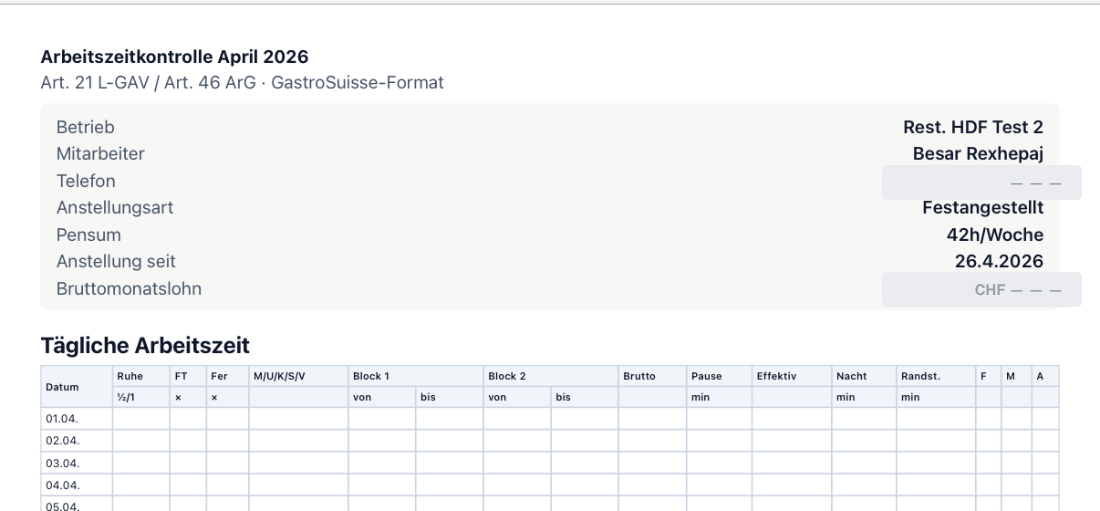
Once a month — usually in the first few days — you receive a WhatsApp message with your personal sign-off link. With it, you confirm your time record. It takes less than a minute.
G
Gastroraonline
⏰ Hi Besar, your monthly close for May 2026 is waiting for your sign-off. Worked: 163h 30min Target: 168h Balance: -4h 30min Please review and sign off:https://gastrora.ch/sign/8SiGLlke…10:12
gastrora.ch/sign
Time record in GastroSuisse format, ready to sign off
The link shows your whole month — all days, breaks, balances. If everything is correct, tap «Correct — sign now».
✓
Thank you — your monthly close is signed.The signature is legally binding under Art. 21 L-GAV.
⚠️
Something not right?Don't sign off if the hours are wrong. Tap «Report an issue» or let your manager know — they correct it in the dashboard and you then receive a new request. You have 14 days to raise an objection.
⚖️
L-GAV noteThe monthly sign-off is a legal requirement under Art. 21 Ziff. 2+3 L-GAV. Without an objection within 14 days, the balance is deemed accepted.

That's it.

You now know everything you need day to day. If you're unsure, just ask your manager — they can see all your messages and hours in the dashboard and can help you.

Tip Save the Gastrora number in your contacts — then you'll always find it quickly.