G
Gastrora Clear hours for your restaurant.
Guide for restaurant owners & managers

Getting the most out of templates

Shift templates are your biggest time-saver: set them up properly once, and you build a weekly plan in 5 minutes instead of 30. Here are some practical tips.

Tip 1

One template per role and time of day

Instead of 20 templates for every possible combination: create a handful of generic shifts that you can apply to every day and every employee.
Lunch service
11:00–15:00 · 0 min break
Evening service
17:00–23:00 · 30 min break
Full-day service
11:00–23:00 · 60 min break
Evening kitchen
16:00–23:00 · 30 min break
Weekend bar
19:00–02:00 · 30 min break
Housekeeping
08:00–10:00 · 0 min break
💡
Rule of thumb5–8 templates are enough for most businesses. More is a burden rather than a help — you lose track when dragging and dropping.
gastrora.ch/dashboard/templates
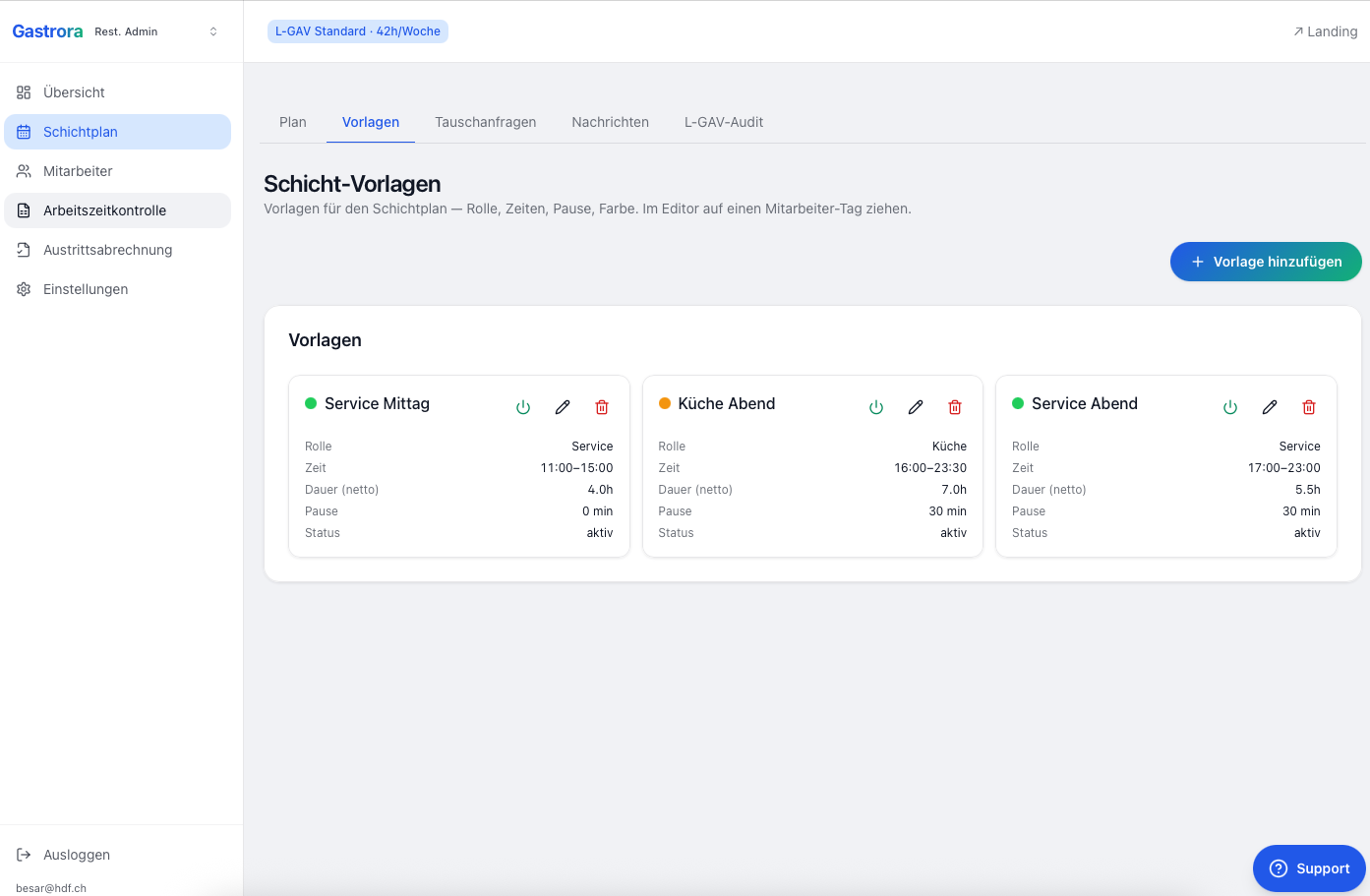
Shift template overview with lunch service, evening kitchen, evening service
This is what three neatly maintained templates look like: lunch service (11:00–15:00, 0 min break), evening kitchen (16:00–23:30, 30 min break), evening service (17:00–23:00, 30 min break). «Edit» for changes, the «Active» switch to deactivate.
Tip 2

«Copy last week» is your friend

If your weeks are fairly similar: «Copy last week» copies the whole plan from the previous week into the current week. You only need to adjust the exceptions (vacation, swaps, special shifts).

1

Shift plan → choose the new week.

2

At the top right, open the «Actions» menu and click «Copy last week».

3

Adjust and publish — usually 2 minutes of work.

Tip 3

Plan breaks automatically

Put the mandatory legal break directly into the template. For shifts of 5½ hours or more, ArG Art. 15 requires at least 15 minutes — we recommend 30 min from a 7-hour shift, which covers L-GAV Art. 17.

⚖️
Mandatory breaks under ArG / L-GAVUp to 5½h: no requirement · more than 5½h: 15 min · more than 7h: 30 min · more than 9h: 60 min. Gastrora marks shifts with too short a break in red in the shift plan (L-GAV check) — you see it before publishing.
Tip 4

Choose role colours strategically

If all kitchen templates are orange, you can see at once whether the kitchen is sufficiently staffed. Service green, bar purple — the plan is readable at a glance, even in a quick print PDF.

💡
Put up printoutsPrint the week PDF (Shift plan → «Actions» → «Print week PDF») or the month PDF («Print month PDF») on A4 landscape and put it up in the staff room — employees who rarely use WhatsApp still see their plan.

Templates = time

Go through your templates once a quarter, adjust them and add new ones — that's enough. Then weekly planning practically runs on autopilot.