Trust is good, control is L-GAV compliant
Without QR, employees could in theory write «Start» from the sofa. In practice, this almost always works out — but if someone does cheat, it gets expensive:
- Wrong hours in the payroll
- Hard to explain during an L-GAV inspection
- Difficult to prove who was really there and when
With the QR requirement, everyone knows: «You can only clock in at work.» Clear rule, no discussion.
Setup
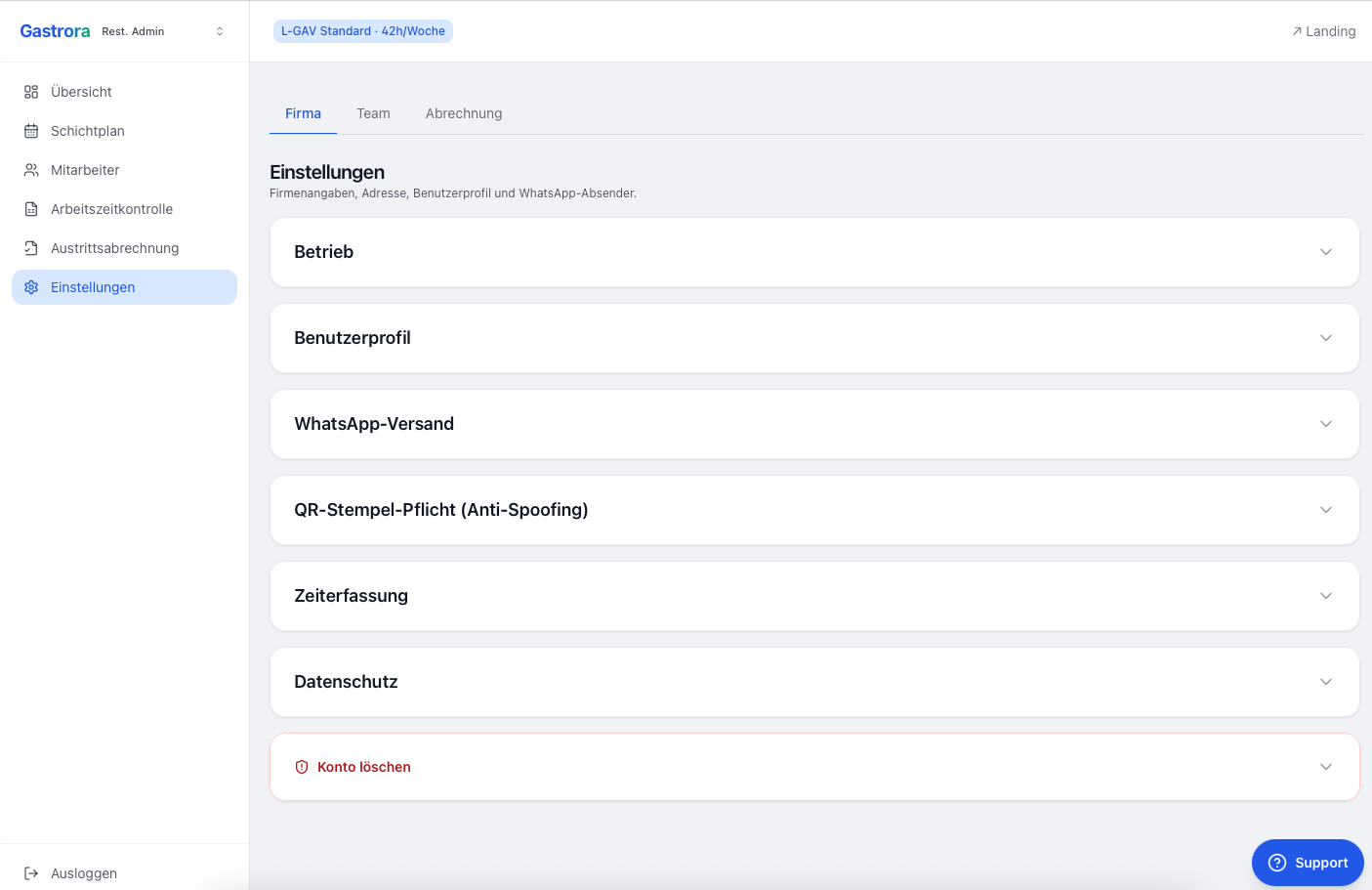
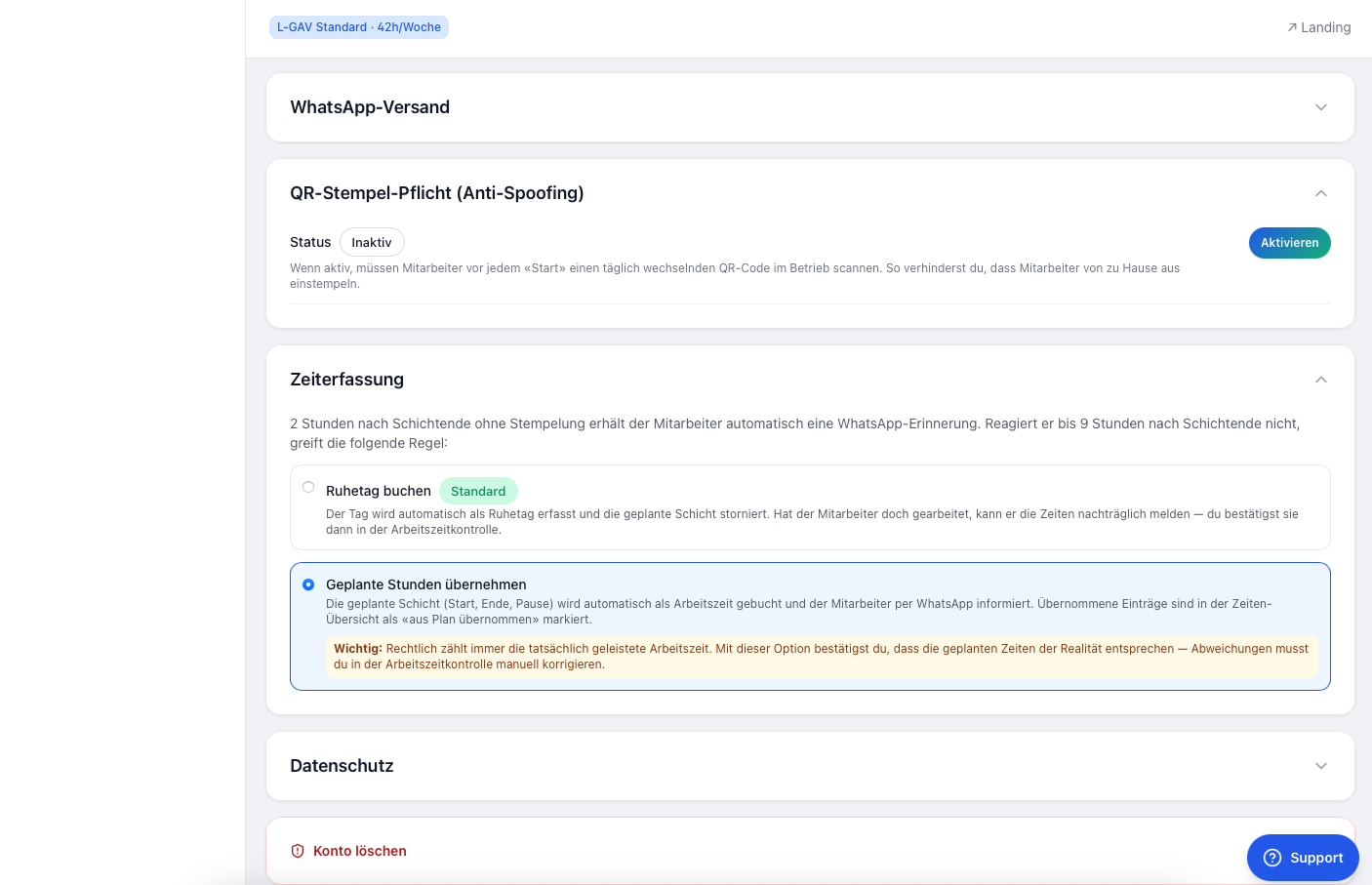
Open Settings and click the «QR clock-in requirement (anti-spoofing)» card.
Click «Enable». A code and a unique URL for your business are generated automatically — the status changes from «Disabled» to «Enabled».
Copy the iPad display URL from the card and open it on an iPad/tablet in the staff room (or behind the bar). Tip: «Add to Home Screen» turns the iPad into a clock-in kiosk.
Done. At the start of their next shift, every employee sees the notice that they have to scan — instructions arrive automatically via WhatsApp.
From the employee's point of view
At the start of the shift, the employee scans the green QR code («Beim Kommen», arriving) with the WhatsApp camera. The text «Start ABC12345» is pre-filled automatically — they just tap «Send». When leaving, they scan the red code («Beim Gehen», leaving) the same way («Ende ABC12345»). Clocking in takes less than 5 seconds.
Real-life scenarios
In an emergency, briefly switch off the requirement (Settings → «Disable»), and switch it back on after the repair. Alternatively, as the manager you record the hours manually under «Time entries».
To finish, the employee scans the red QR code («Beim Gehen», leaving) — WhatsApp pre-fills «Ende ABC12345», they just tap «Send». A plain «End» without a scan is not accepted while the QR requirement is on. If the clock-out is missing, the shift stays open: you complete the end time as the manager under «Time entries».
This also works without a scan — but the entry is automatically marked as a draft. You confirm it under «Time entries» before it counts towards the balance. That way it stays clear what was really clocked on site.
The QR card has a «Replace now» button next to the current daily code. Handy if you suspect someone has passed on today's code.